Jellyfin hub
Jellyfin beginner guides that fix the real problems.
Start with a simple Jellyfin server, then work through folders, mounts, Docker paths, USB storage, subtitles, Direct Play, transcoding, client devices, and safe remote access.
If you are new
Follow this order
- Install Jellyfin on a simple low-power server.
- Put media in stable folders and mounts.
- Fix Linux or Docker permissions properly.
- Check playback mode before buying hardware.
- Use private remote access before exposing anything publicly.
Storage fix path
Media missing after reboot?
Verify the disk mount, UUID, fstab entry, service timing, and Jellyfin access before rescanning or reinstalling anything.
Open the reboot and mount guide → Playback fix path
Unexpected transcoding?
Read the dashboard reason, test subtitles and audio, compare clients, and inspect the file before changing the server.
Open the transcoding diagnosis guide → Recent changes
Jellyfin updates
Release and compatibility changes that may affect your server, clients, or playback.
View all Jellyfin updates → Jellyfin 12.2 is now the current stable release. Check supported upgrade versions, backups, third-party plugins, the first full library scan, web security fixes and rollback before updating.
Jellyfin 10.11.7 fixed important security issues, 10.11.11 is now the stable patch, and the next major server release is 12.0 rather than 10.12.
Jellyfin for Android 2.7 changes downloads, makes the native player the default, improves Android Auto, and ends future app updates for Android 5 devices.
Upgrade safely
Keep Jellyfin 10.11 current and prepare safely for version 12
Apply the latest stable 10.11 patch first, then prepare backups, plugins, remote access and rollback for Jellyfin 12.
Update Jellyfin 10.11 safely on Ubuntu or Docker: check the current version, take an offline backup, review plugins, update one layer and verify playback.
Read guide → Prepare Jellyfin 10.10 or 10.11 for version 12: verify backups, plugins, Docker or Ubuntu packages, migrations, permissions, playback and rollback.
Read guide → 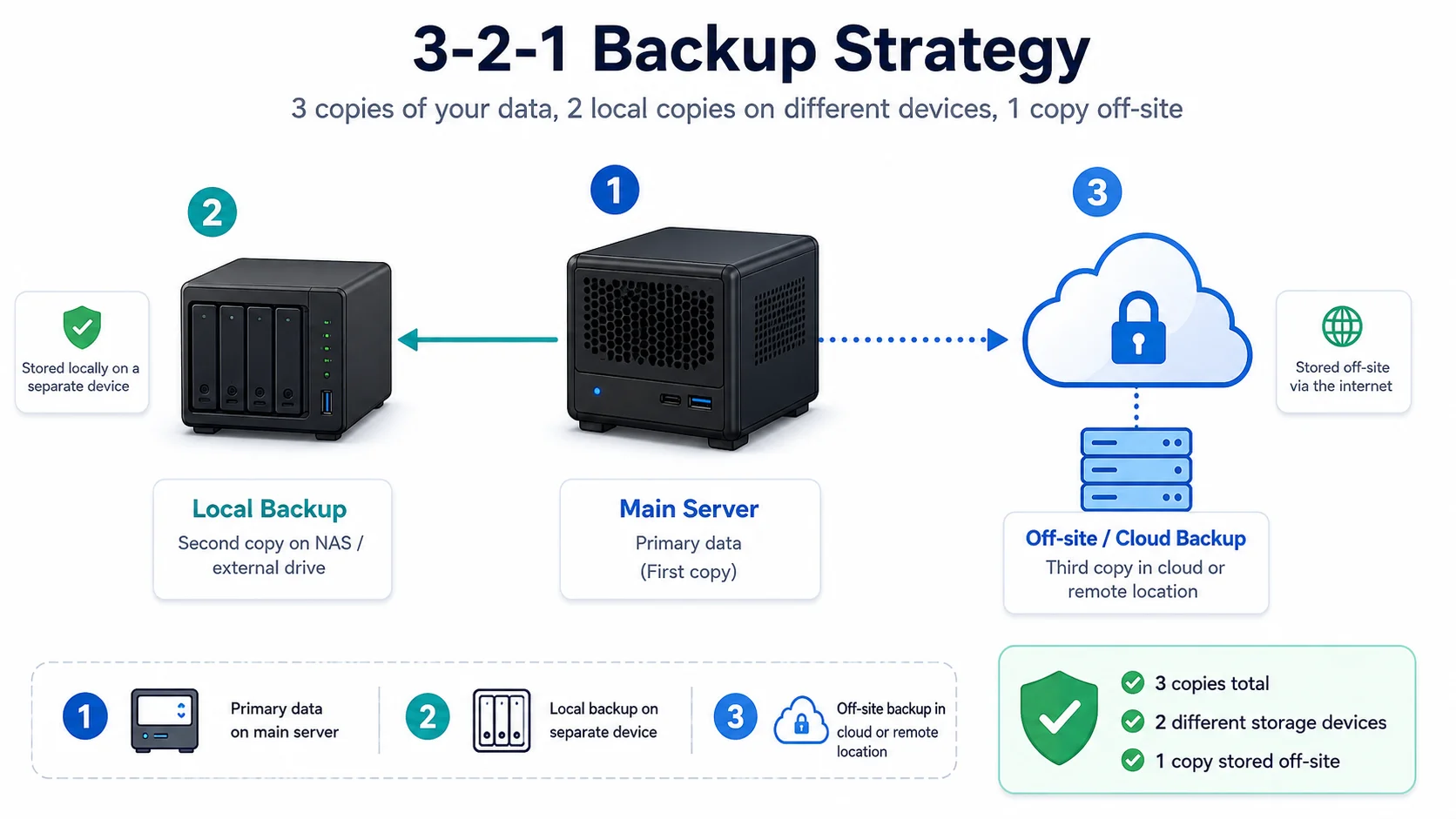
A simple home server backup strategy built around 3-2-1, automatic copies, offsite protection, and tested restores.
Read guide → 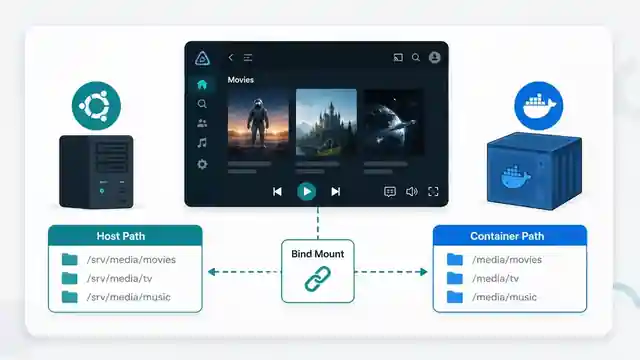
Understand Jellyfin Docker bind mounts, host paths, container paths, read-only media mounts, Compose mappings, docker inspect output, and why media folders appear empty.
Read guide → Start here
Build the basic Jellyfin server
Start with the clean, low-power setup path before trying remote access, transcoding, or advanced storage.
Reduce Jellyfin server electricity use on Ubuntu by measuring idle and playback power, avoiding unnecessary transcoding, checking background load, storage, CPU behaviour and reboot health.
Read guide → 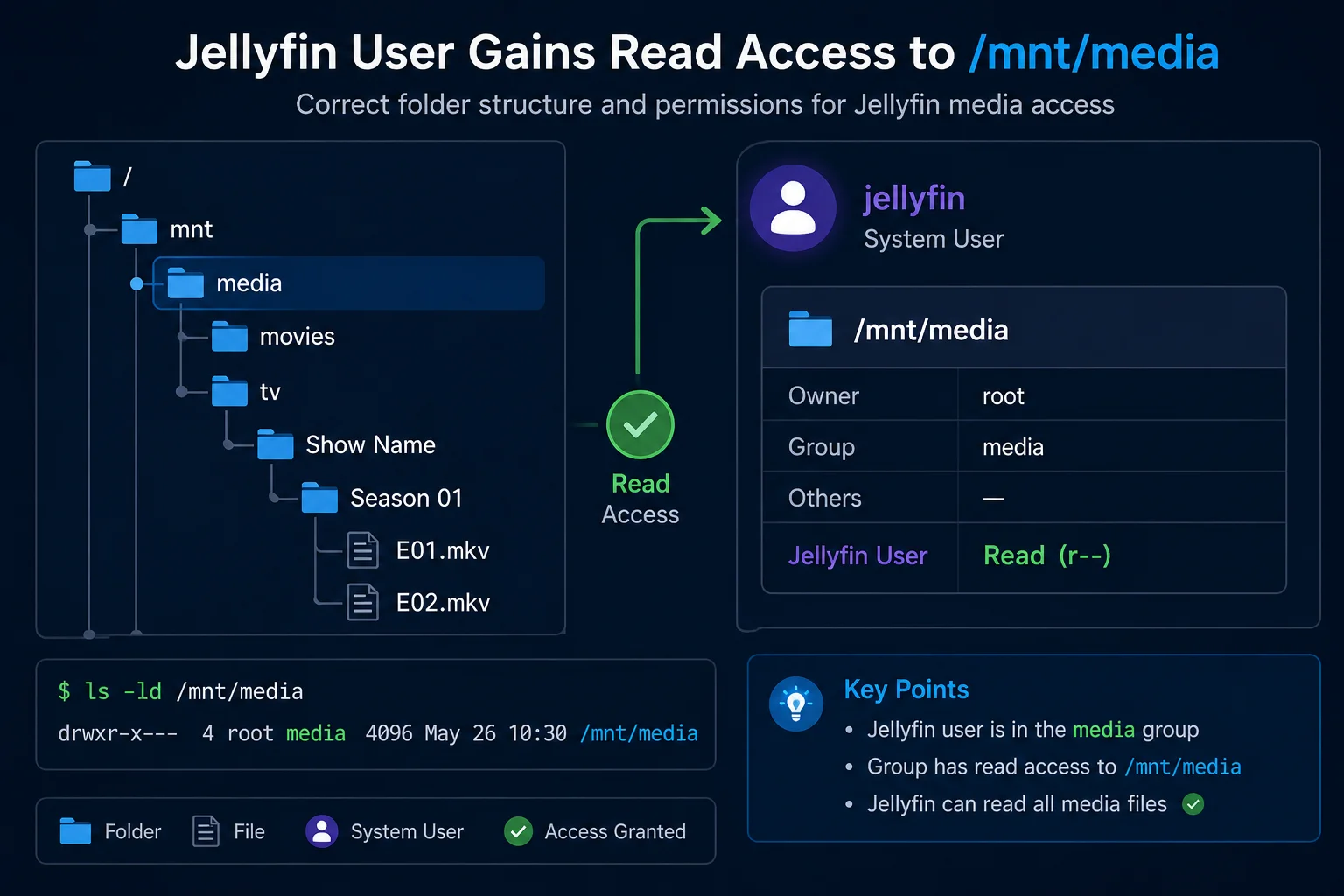
Fix Jellyfin permission denied errors on Ubuntu. Test the service user, find blocked parent folders, apply safe ACLs, verify inheritance, and check mounted-drive options.
Read guide → 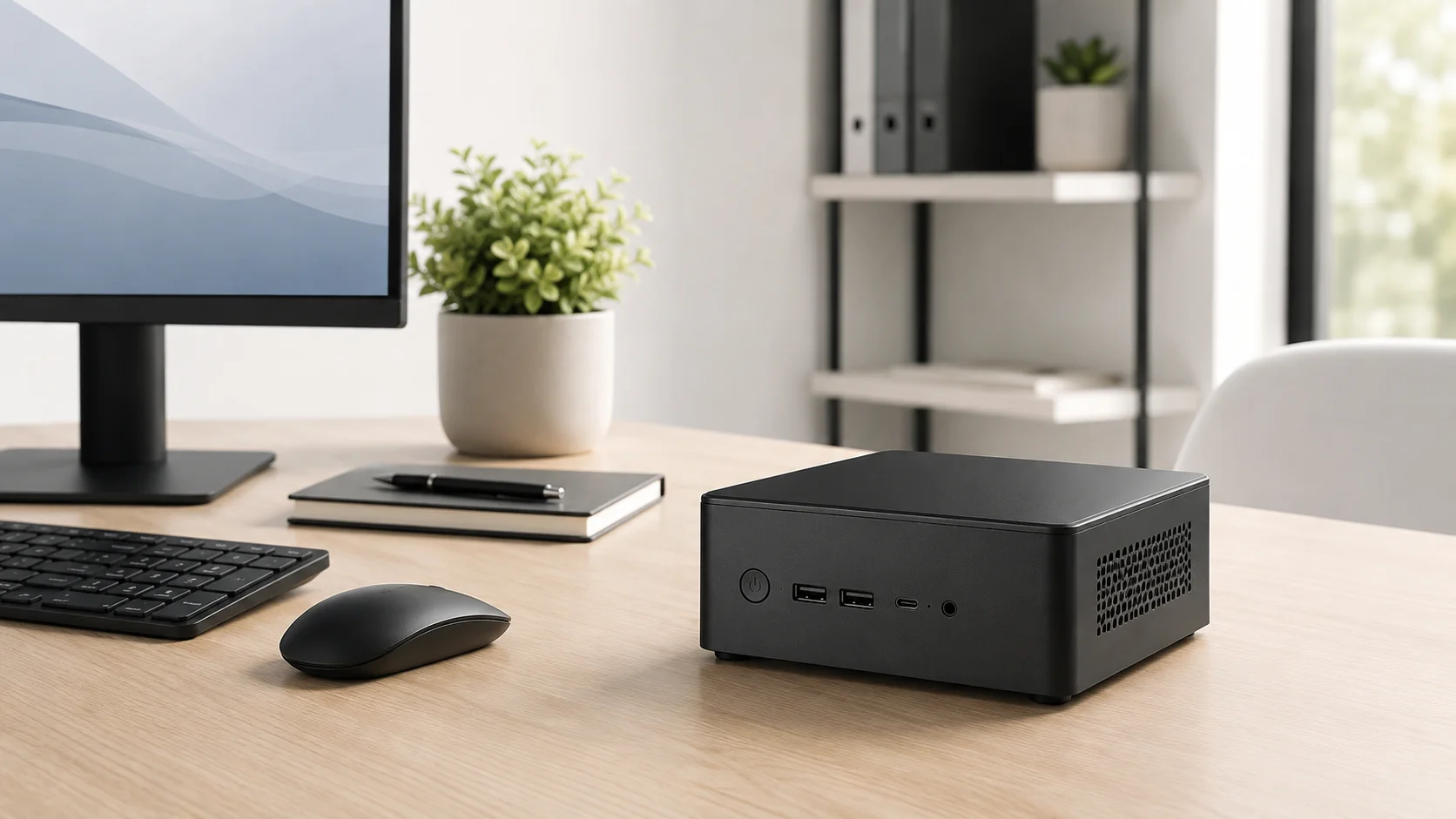
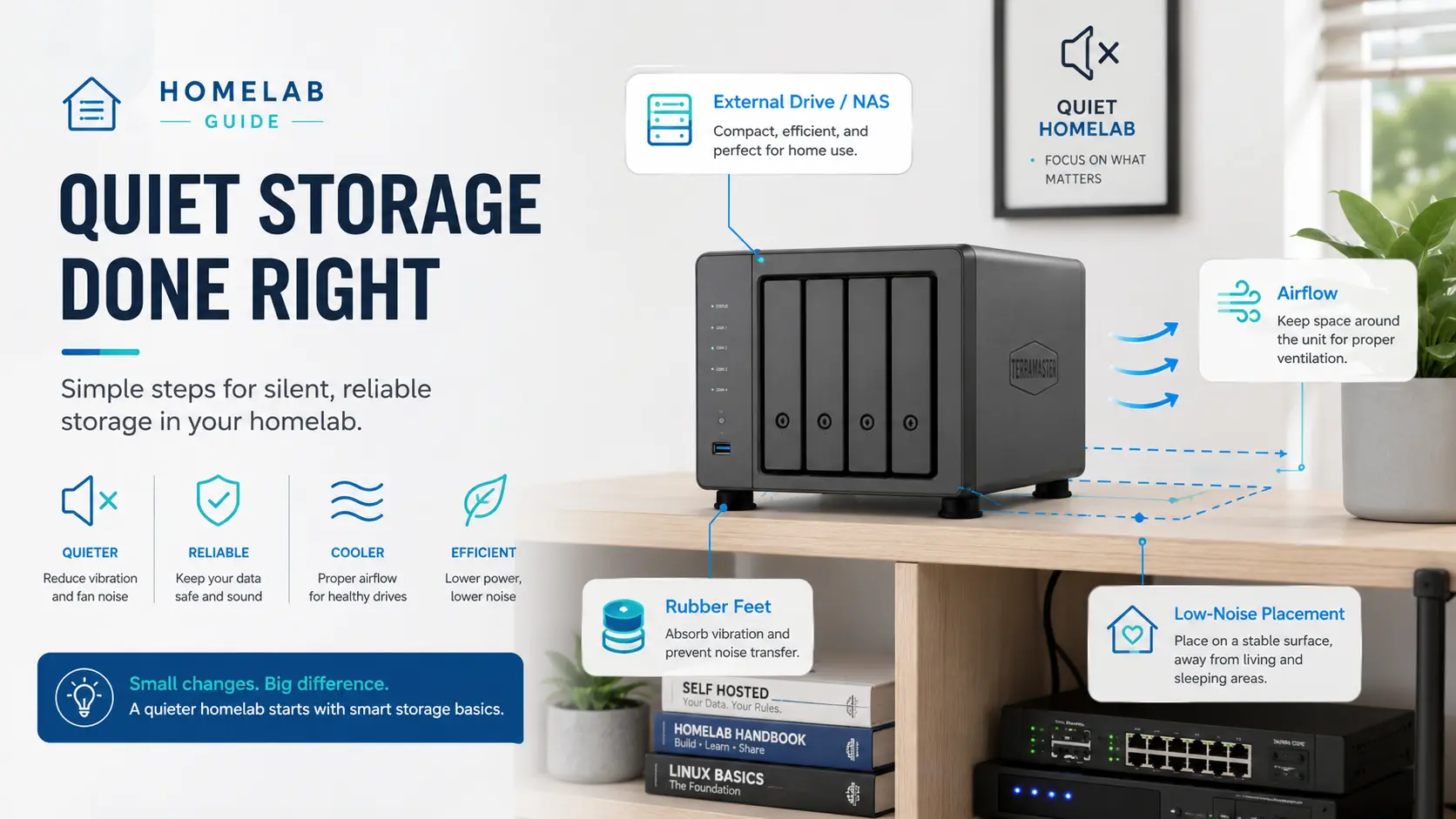
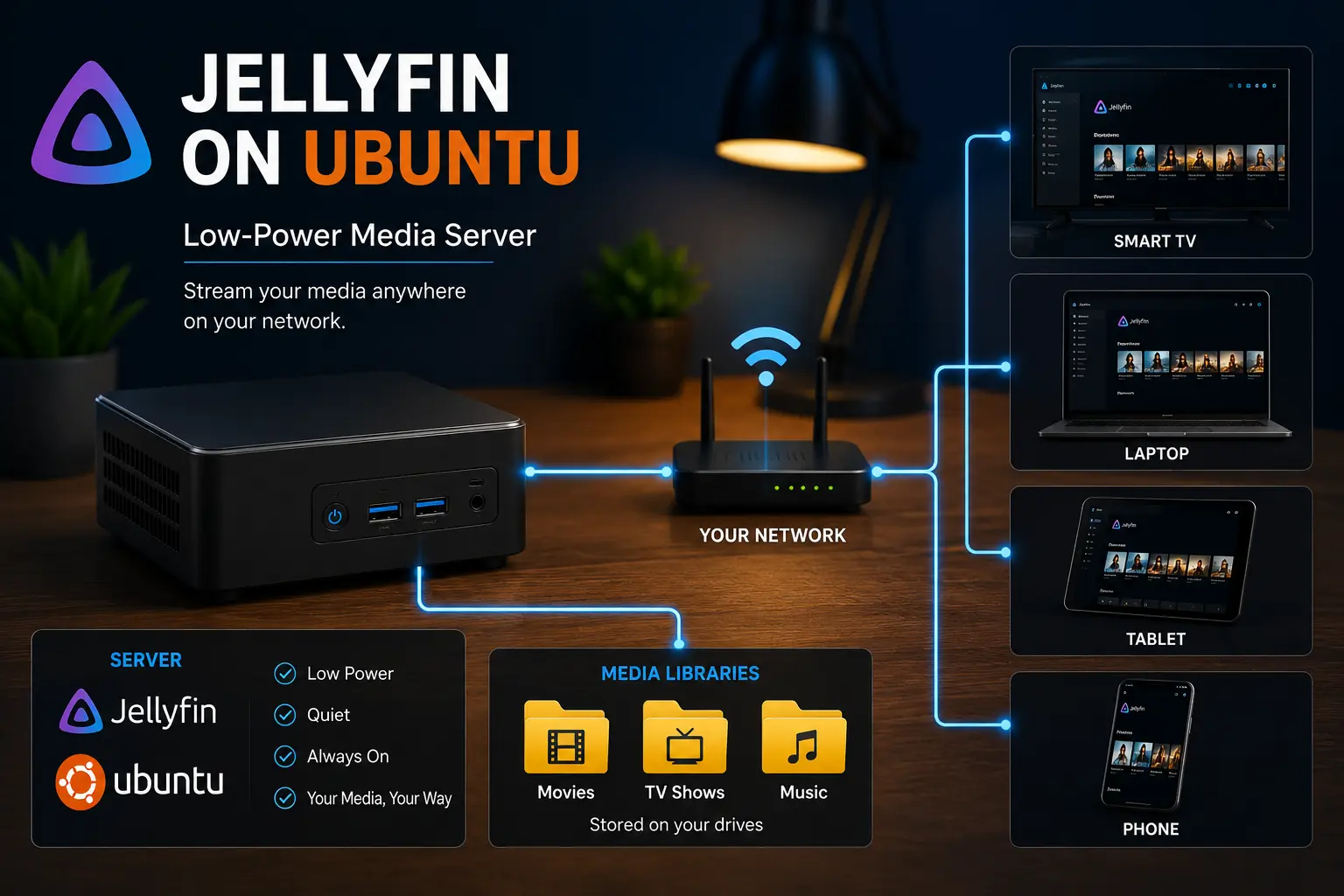
Build a quiet Jellyfin media server on a mini PC with sensible hardware, storage, direct play, backups, and low-power home lab defaults.
Read guide → Fix common problems
Solve missing media, empty libraries, mounts, and Docker paths
Most beginner Jellyfin problems are path, mount, folder permission, new-file inheritance, USB storage, or Docker volume mapping problems.
Fix Jellyfin when newly added movies or episodes do not appear. Check new-file permissions, mounts, Docker paths, scans, monitoring, naming and logs.
Read guide → Fix a Jellyfin library that is empty or missing media. Check mounts, Linux permissions, Docker paths, library folders, naming, scans and logs in the correct order.
Read guide → 
Fix Jellyfin libraries that disappear after reboot. Check mount points, UUID entries, fstab, service timing, permissions, and empty media folders.
Read guide → 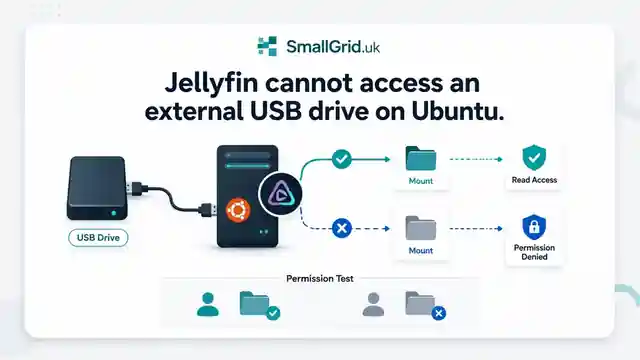
Fix Jellyfin access to USB media drives on Ubuntu. Check mount paths, filesystem type, permissions, fstab options, and reboot behaviour step by step.
Read guide → Understand Jellyfin Docker bind mounts, host paths, container paths, read-only media mounts, Compose mappings, docker inspect output, and why media folders appear empty.
Read guide → Fix Jellyfin Docker permission denied errors. Check bind mounts, container paths, UID and GID values, read-only media access, active mounts, and file visibility step by step.
Read guide → Playback
Reduce transcoding and improve Direct Play
Understand playback modes, subtitle burn-in, formats, client compatibility, and what hardware actually matters.
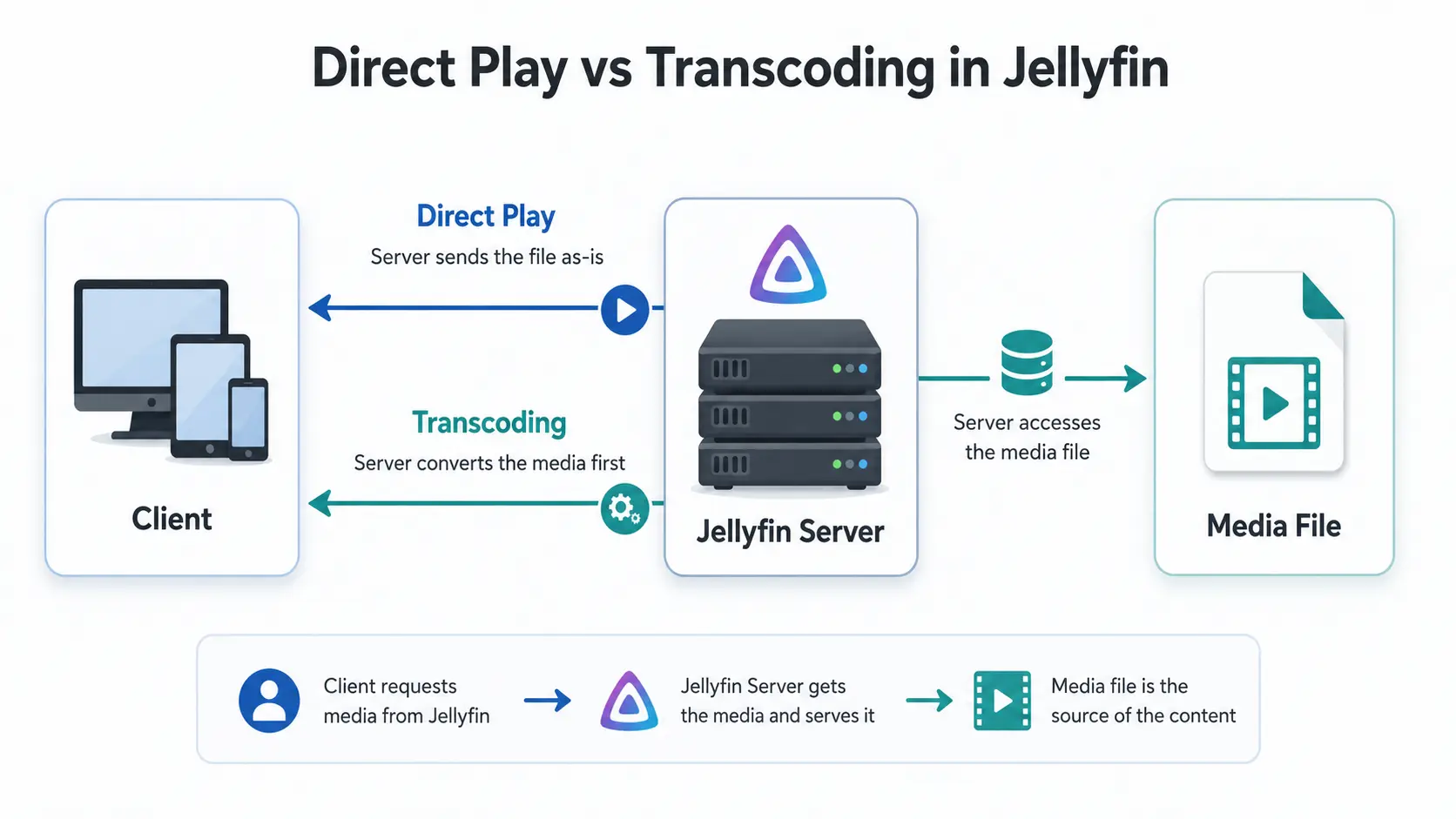
Why is Jellyfin transcoding instead of Direct Playing? Compare Direct Play, Direct Stream and transcoding, CPU usage, quality and common triggers.
Read guide → 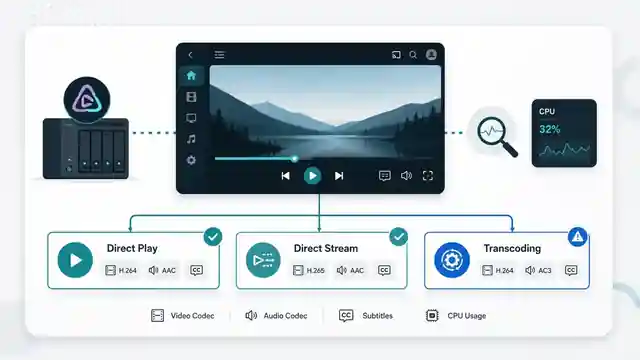
Find the exact reason Jellyfin is transcoding. Check the dashboard, playback information, codecs, subtitles, audio, bitrate limits, logs, and hardware acceleration step by step.
Read guide → 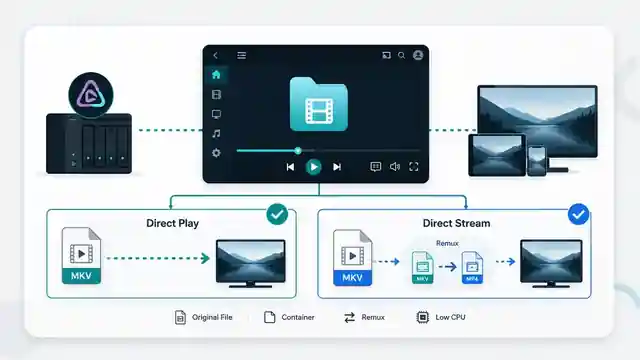
Understand Jellyfin Direct Stream vs Direct Play, when remuxing happens, how server load changes, how to verify the playback mode, and whether Direct Stream needs fixing.
Read guide → 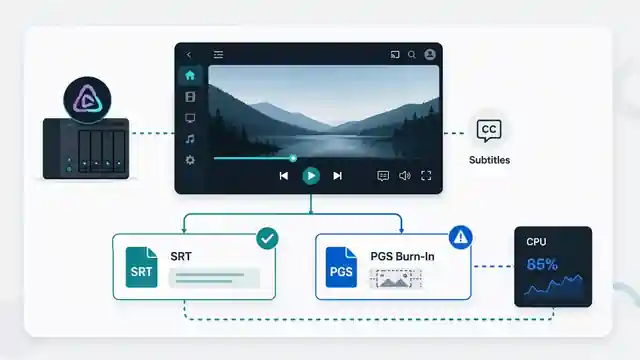
Fix Jellyfin subtitle burn-in and unnecessary transcoding. Learn which subtitle formats Direct Play, why PGS causes problems, and how to test client support.
Read guide → Can Jellyfin play MKV, MP4 and HEVC? See supported containers, codecs and subtitles, plus why files Direct Play, Direct Stream or transcode.
Read guide → 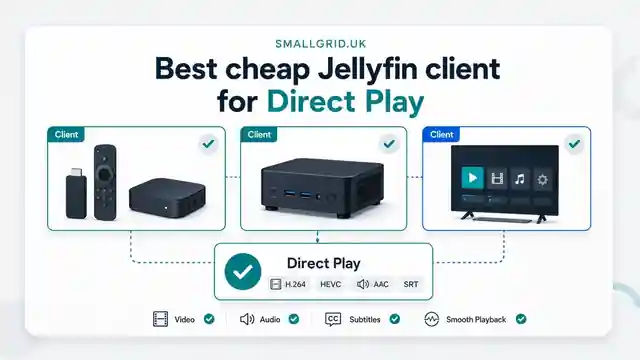
Choose a low-cost Jellyfin client for reliable Direct Play. Compare smart-TV apps, streaming devices, mini PCs, browsers, codec support, subtitles, networking, and 4K requirements.
Read guide → Set up Jellyfin hardware transcoding on Ubuntu with Intel Quick Sync, VAAPI, render permissions, and simple checks for low-power mini PCs.
Read guide → Looking for the best mini PC for a Jellyfin server? Compare Intel N100 and used Core i5 options, Quick Sync, RAM, SSD and low-power requirements.
Read guide → Remote access
Access Jellyfin safely from outside home
Use private remote access first. Avoid opening ports until you understand the security trade-offs.
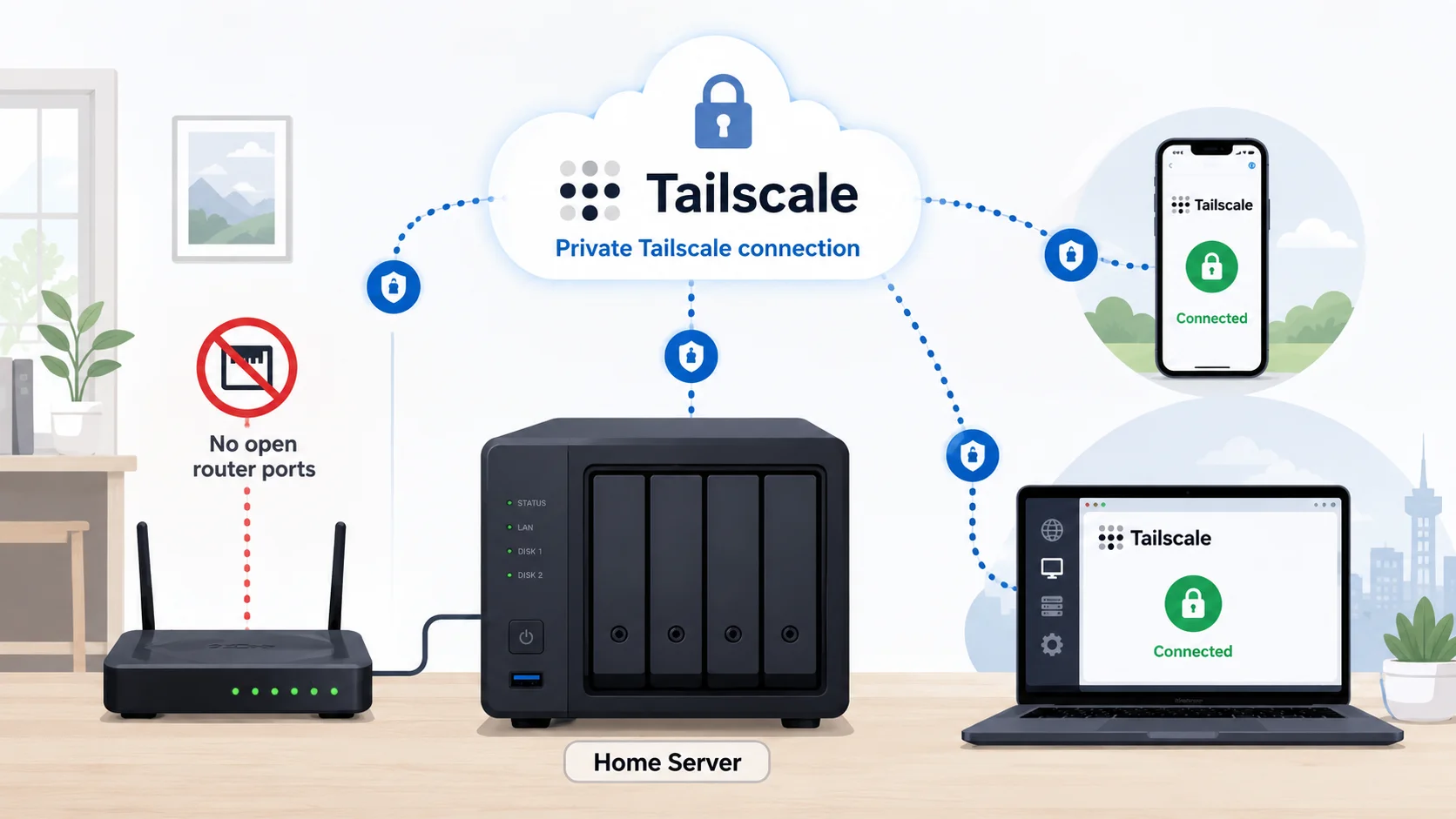
Access Jellyfin remotely with Tailscale on Ubuntu without port forwarding, DDNS, or a public reverse proxy. Includes setup, MagicDNS, testing, and fixes.
Read guide → Compare safe Jellyfin remote access options, including Tailscale, VPNs, reverse proxies, HTTPS, and why port forwarding should not be the default.
Read guide → A simple home server backup strategy built around 3-2-1, automatic copies, offsite protection, and tested restores.
Read guide → Printable help
Download the Jellyfin checklists
Use these when you want to work through the problem step by step without bouncing between browser tabs.
Work through paths, mounts, scans, logs, and permissions in the right order.
Download PDF Check host paths, container paths, bind mounts, users, and read-only volumes.
Download PDF Check codecs, clients, subtitles, audio, and hardware before upgrading.
Download PDF
More downloads are available in the SmallGrid checklists section.