


Quick answer
What this guide helps you do
Can Jellyfin play MKV, MP4 and HEVC? See supported containers, codecs and subtitles, plus why files Direct Play, Direct Stream or transcode.
Jellyfin beginner path
New to Jellyfin? Follow this order.
These guides form the SmallGrid Jellyfin path: install it, fix folder access, solve empty libraries, reduce unnecessary transcoding, then choose the right mini PC.
Printable helper
Prefer to work through this step by step?
Download the matching checklist and tick off the common causes while you work through the guide.
Quick answer
Yes, Jellyfin can play MKV and MP4 files, but whether they Direct Play depends on the video, audio and subtitles inside the file, and on the playback client. MKV is a container, not a video codec. A compatible MKV may Direct Play; another may need remuxing or transcoding.
For the widest Jellyfin Direct Play compatibility, use MP4 or MKV with H.264 video, AAC or AC3 audio, and external SRT subtitles.
Container: MP4 or MKV
Video:     H.264
Audio:     AAC or AC3
Subtitles: External SRT
For 4K libraries, HEVC/H.265 can save substantial storage, but use it only when the actual playback devices support the required codec profile, bit depth and HDR format.
There is no single file format guaranteed to Direct Play on every Jellyfin client. The final result depends on the complete combination of:
- container
- video codec and profile
- audio codec and channel layout
- subtitle format
- resolution and bitrate
- HDR format
- client application
- quality settings
- local or remote bandwidth
Before converting a file, play it and inspect the active session in the Jellyfin dashboard. The conversion reason will normally identify whether the problem is the container, video, audio, subtitles, bitrate or client.
Jellyfin format compatibility table
A container and a codec are different. MKV, MP4 and AVI are containers; H.264, HEVC/H.265 and AV1 are video codecs stored inside them.
| Format | Type | Direct Play outlook | Practical advice |
|---|---|---|---|
| MP4 | Container | Broadest client support when paired with H.264 and AAC | Best compatibility-first choice |
| MKV | Container | Strong in native clients; some clients may Direct Stream it | Best for multiple audio, subtitle and chapter tracks |
| AVI | Container | Legacy and inconsistent across modern clients | Remux or convert only after confirming it causes the problem |
| H.264/AVC | Video codec | Widest support across browsers, televisions and streaming devices | Safest default for mixed clients |
| HEVC/H.265 | Video codec | Excellent on compatible modern devices; weaker on older or browser clients | Useful for 4K and smaller files when every important client supports it |
| AV1 | Video codec | Growing support but still device-dependent | Use only after testing the actual household clients |
A supported format can still transcode because of its profile, bit depth, audio track, subtitles, bitrate, HDR format or the selected client.
Best Jellyfin formats at a glance
| Library goal | Container | Video | Audio | Subtitles | Likely result |
|---|---|---|---|---|---|
| Broadest compatibility | MP4 | H.264 | AAC | External SRT | Strongest chance of Direct Play across mixed clients |
| Flexible home library | MKV | H.264 | AAC or AC3 | SRT | Direct Play on many native clients; some may Direct Stream |
| Storage-efficient 4K | MKV | HEVC Main 10 | AAC or AC3 compatibility track | SRT | Direct Play only where HEVC, bit depth and HDR are supported |
| Archive with specialist audio | MKV | H.264 or HEVC | Original audio plus compatible fallback | Text subtitles where possible | Flexible, but behaviour varies by client |
| Low-power server | MP4 or MKV | Codec supported by clients | Compatible audio | SRT | Client compatibility matters more than raw server power |
For the wider playback explanation, use Jellyfin Direct Play: Formats, Clients and Transcoding.
What file formats does Jellyfin support?
Jellyfin can catalogue and process many containers, video codecs, audio codecs and subtitle formats. That does not mean every client can Direct Play every combination.
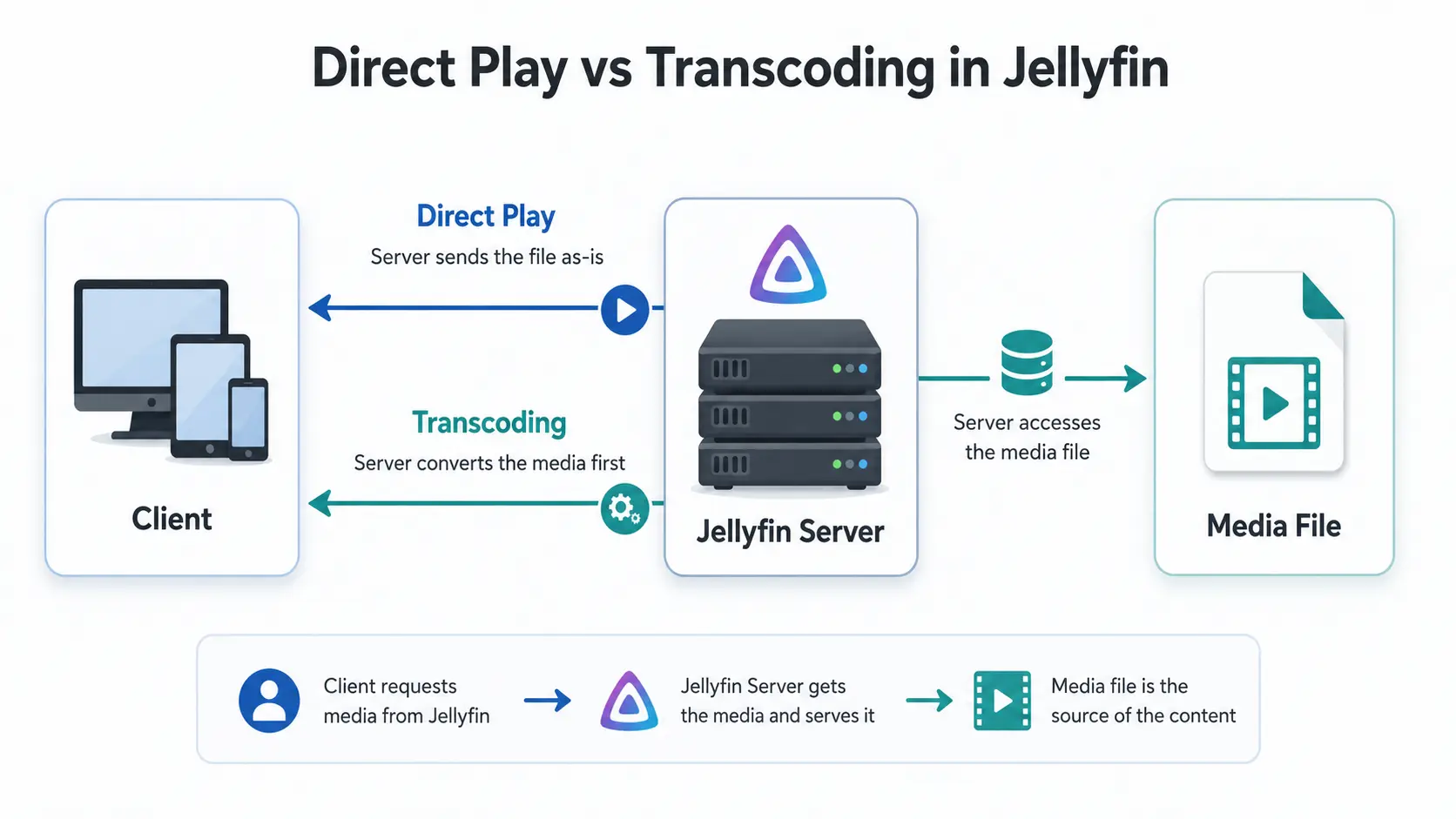
The server can respond in three ways:
- Direct Play: sends the original streams
- Direct Stream: repackages compatible streams into another delivery container
- Transcoding: converts incompatible video, audio, subtitles, bitrate or resolution
A supported file can therefore still transcode because the playback client cannot decode one part of it.
Read Jellyfin Direct Play vs Transcoding for the CPU and quality differences.
Best video codec for Jellyfin
H.264: best for broad compatibility
H.264 remains the safest default for 1080p content and mixed client environments.
Use H.264 when:
- several different playback devices matter
- browser playback matters
- the server has limited transcoding ability
- predictable Direct Play is more important than maximum compression
- older televisions or streaming devices remain in use
The trade-off is larger files than HEVC at similar visual quality.
HEVC or H.265: best for efficient 4K libraries
HEVC is useful for 4K and storage-efficient libraries.
Use HEVC when:
- every important client supports HEVC
- the required profile and bit depth are supported
- HDR compatibility has been tested
- storage savings justify narrower client compatibility
Do not convert an entire library to HEVC only because a device is advertised as “4K”. Confirm the actual codec profile, app behaviour, audio support and subtitle handling.
AV1: efficient but client-led
AV1 can offer strong compression, but client support is less universal than H.264 and HEVC.
Use AV1 only when the actual household clients support it reliably. Treat it as a client-led format choice rather than the general default.
MP4 vs MKV for Jellyfin
MP4 and MKV are containers. They hold the video, audio, subtitle, chapter and metadata tracks.
| Container | Main advantage | Main limitation |
|---|---|---|
| MP4 | Broad browser, mobile and streaming-device compatibility | Less flexible for unusual audio, subtitle and chapter combinations |
| MKV | Flexible audio, subtitles, chapters and multiple tracks | Some clients may Direct Stream or reject specific combinations |
Choose MP4 when
- browser playback matters
- you want a simple compatibility file
- the file uses H.264 and AAC
- multiple specialist tracks are not required
A strong compatibility combination is:
MP4 + H.264 + AAC + external SRTChoose MKV when
- you need several audio or subtitle tracks
- you want chapters
- you keep original audio plus a compatibility track
- library flexibility matters
- most playback happens through capable native clients
MKV does not automatically cause video transcoding. A client may Direct Play it, Direct Stream it into another container or convert only an incompatible audio track.
Can Jellyfin play MP4 files?
Yes. MP4 is one of the strongest container choices for broad client compatibility, particularly when combined with:
Video: H.264
Audio: AAC
Subtitles: external SRT
An MP4 file can still transcode when it contains an unsupported video profile, audio format, bitrate, HDR format or subtitle combination.
The container name alone does not determine the playback mode.
Can Jellyfin play MKV files?
Yes. MKV is useful for media libraries because it can contain multiple audio tracks, subtitle tracks, chapters and flexible metadata.
Whether an MKV Direct Plays depends on the client. If the video and audio codecs are supported but the container is not, Jellyfin may Direct Stream the file without re-encoding the video.
Direct Stream is normally a lightweight and acceptable result.
Audio formats and Direct Play
A compatible video stream can still require audio conversion.
Safer general choices include:
AAC
AC3
Formats that can cause client-specific conversion include:
DTS
DTS-HD
TrueHD
EAC3 on older devices
unsupported multichannel layouts
Audio-only conversion is normally much lighter than video conversion, but it still changes the playback mode.
For mixed clients, keep the original high-quality audio track and add AAC or AC3 as a compatibility track where practical.
Subtitle formats and Direct Play
External SRT subtitles are normally the safest choice:
Film Name (2026).mkv
Film Name (2026).en.srt
Text subtitle formats are usually easier for clients to render directly.
Formats that may require burn-in include:
- PGS
- VobSub
- ASS or SSA when the client cannot reproduce the styling
Subtitle burn-in requires Jellyfin to create new video frames, which triggers full video transcoding.
Test the same scene in this order:
- play with subtitles enabled
- check the dashboard
- disable subtitles
- replay the same scene
If the mode changes to Direct Play or Direct Stream, use Jellyfin Subtitles Causing Transcoding.
Recommended 1080p format
Container: MP4 or MKV
Video:     H.264
Audio:     AAC or AC3
Subtitles: External SRT
This is the safest general target for a low-power server supporting several client types.
Use MP4 with H.264 and AAC for the broadest compatibility. Use MKV with H.264 and AAC or AC3 when multiple tracks and chapters are important.
Recommended 4K format
Container: MKV
Video:     HEVC Main 10
Audio:     Original track plus AAC or AC3 compatibility track
Subtitles: External SRT where possible
Requirement: Important clients support the exact video and HDR format
For remote viewing, a separate 1080p version may be more practical than asking a low-power server to convert high-bitrate 4K media in real time.
Avoid image-based subtitles where possible because burn-in can turn an otherwise compatible 4K file into a demanding video transcode.
Inspect a Jellyfin file with ffprobe
Run:
ffprobe -hide_banner "Film Name (2026).mkv"For a compact stream summary:
ffprobe -v error \
  -show_entries stream=index,codec_type,codec_name,profile,width,height,channels \
  -of table \
  "Film Name (2026).mkv"
Look for:
- container
- video codec and profile
- pixel format and bit depth
- resolution and frame rate
- audio codecs and channels
- subtitle codecs
- bitrate
Then compare those details with the client and conversion reason shown in the Jellyfin dashboard.
Worked diagnosis example
Suppose a file contains:
Container: MKV
Video:     H.264
Audio:     DTS
Subtitles: PGS
The video codec is broadly compatible, but the client may still transcode because of DTS audio or PGS subtitle burn-in.
Test in this order:
- disable subtitles
- replay and inspect the dashboard
- switch to a compatible audio track
- replay again
- try a native Jellyfin client instead of a browser
| Result | Likely cause | Smallest fix |
|---|---|---|
| Direct Play after subtitles are disabled | Unsupported subtitle rendering | Use SRT or another client |
| Video remains original but audio converts | DTS is unsupported | Select or add AAC/AC3 |
| Browser Direct Streams but native app Direct Plays | Container or browser limitation | Use the native client; no conversion required |
| Every client converts HEVC video | HEVC profile is unsupported | Keep H.264 or provide a compatible version |
This is why converting a whole file before reading the dashboard can waste time and reduce quality unnecessarily.
Build a repeatable compatibility test set
Before standardising a library, test representative files:
| Test file | Purpose |
|---|---|
| 1080p H.264 and AAC in MP4 | Broad compatibility baseline |
| 1080p H.264 and AC3 in MKV | Tests MKV and AC3 support |
| 1080p HEVC Main 10 in MKV | Tests HEVC and 10-bit decoding |
| 4K HEVC HDR sample | Tests high bitrate, HDR and network behaviour |
| External SRT subtitle | Tests text subtitle rendering |
| Embedded ASS subtitle | Tests styled subtitle support |
| Embedded PGS subtitle | Tests image subtitle handling and burn-in |
For each client, record:
Playback mode
Stated conversion reason
Video conversion
Audio conversion
Subtitle burn-in
Buffering or playback failure
Do not assume one successful file proves support for every profile or track combination.
Should you convert the whole Jellyfin library?
Usually not.
Start with files that actually cause problems, then choose the smallest sensible fix:
- use a more compatible client
- switch audio tracks
- use SRT subtitles
- remux without re-encoding when only the container is wrong
- create a compatible second version
- convert only the problem file
- configure hardware transcoding when real-time conversion is genuinely required
Whole-library conversion consumes processing time, electricity, temporary storage and maintenance effort. It can also reduce quality without solving client-specific problems.
Final verification checklist
Before adopting a format as the library standard, confirm:
- the main television client Direct Plays it
- mobile and secondary clients behave acceptably
- browser behaviour is understood
- subtitles do not unexpectedly trigger burn-in
- the compatibility audio track works
- local quality is set to Original during testing
- the dashboard shows the expected playback mode
- a high-bitrate file plays without network buffering
- remote playback is tested separately from local playback
A successful test is the active Jellyfin session showing the expected mode on the actual client—not merely a codec name appearing in a specification sheet.
Related guides
- Jellyfin Direct Play: Formats, Clients and Transcoding
- Jellyfin Direct Play vs Transcoding
- Jellyfin Troubleshooting
- How to Check Why Jellyfin Is Transcoding
- Jellyfin Direct Stream vs Direct Play
- Jellyfin Subtitles Causing Transcoding
- Jellyfin Hardware Transcoding on Ubuntu
- Best Cheap Jellyfin Client for Direct Play
- Jellyfin on Ubuntu
Recap
For broad compatibility, use H.264 video with AAC or AC3 audio and external SRT subtitles inside MP4 or MKV.
Use HEVC for 4K only when the important clients support the exact profile, bit depth, HDR format, audio and subtitles.
Inspect the file, play it on the real client and read the Jellyfin dashboard before converting anything.
Downloadable checklist
Save the matching PDF checklist
Use these while working through the guide, or keep a copy for the next time the same problem appears.
Jellyfin Direct Play Checklist
A quick format and playback checklist to reduce unnecessary transcoding.
Download PDFMore downloads are available in the SmallGrid checklists section.
Next guide
What to read next
Continue the setup path with these closely related guides.
Jellyfin Direct Play vs Transcoding: What Is the Difference?
Why is Jellyfin transcoding instead of Direct Playing? Compare Direct Play, Direct Stream and transcoding, CPU usage, quality and common triggers.
Jellyfin Hardware Transcoding on Ubuntu: Intel Quick Sync Setup
Set up Jellyfin hardware transcoding on Ubuntu with Intel Quick Sync, VAAPI, render permissions, and simple checks for low-power mini PCs.
Best Mini PC for Jellyfin: CPU, RAM and Quick Sync Specs
Looking for the best mini PC for a Jellyfin server? Compare Intel N100 and used Core i5 options, Quick Sync, RAM, SSD and low-power requirements.
Jellyfin guide cluster
More Jellyfin fixes and setup guides
These guides link the main Jellyfin setup, permissions, remote access, direct play, and hardware topics together.
Jellyfin 12 Upgrade Guide: 10 Things to Check Before You Update
Prepare Jellyfin 10.10 or 10.11 for version 12: verify backups, plugins, Docker or Ubuntu packages, migrations, permissions, playback and rollback.
How to Reduce Jellyfin Server Power Use on Ubuntu
Reduce Jellyfin server electricity use on Ubuntu by measuring idle and playback power, avoiding unnecessary transcoding, checking background load, storage, CPU behaviour and reboot health.
Give Jellyfin Access to Media Folders on Ubuntu
Fix Jellyfin permission denied errors on Ubuntu. Test the service user, find blocked parent folders, apply safe ACLs, verify inheritance, and check mounted-drive options.
Jellyfin Library Not Showing Files? 8 Checks That Fix It
Fix a Jellyfin library that is empty or missing media. Check mounts, Linux permissions, Docker paths, library folders, naming, scans and logs in the correct order.
Jellyfin Docker Permissions: Fix Media Folder Access and UID/GID Errors
Fix Jellyfin Docker permission denied errors. Check bind mounts, container paths, UID and GID values, read-only media access, active mounts, and file visibility step by step.
Jellyfin Direct Play vs Transcoding: What Is the Difference?
Why is Jellyfin transcoding instead of Direct Playing? Compare Direct Play, Direct Stream and transcoding, CPU usage, quality and common triggers.