


Quick answer
What this guide helps you do
Why is Jellyfin transcoding instead of Direct Playing? Compare Direct Play, Direct Stream and transcoding, CPU usage, quality and common triggers.
Jellyfin beginner path
New to Jellyfin? Follow this order.
These guides form the SmallGrid Jellyfin path: install it, fix folder access, solve empty libraries, reduce unnecessary transcoding, then choose the right mini PC.
Printable helper
Prefer to work through this step by step?
Download the matching checklist and tick off the common causes while you work through the guide.
Quick answer
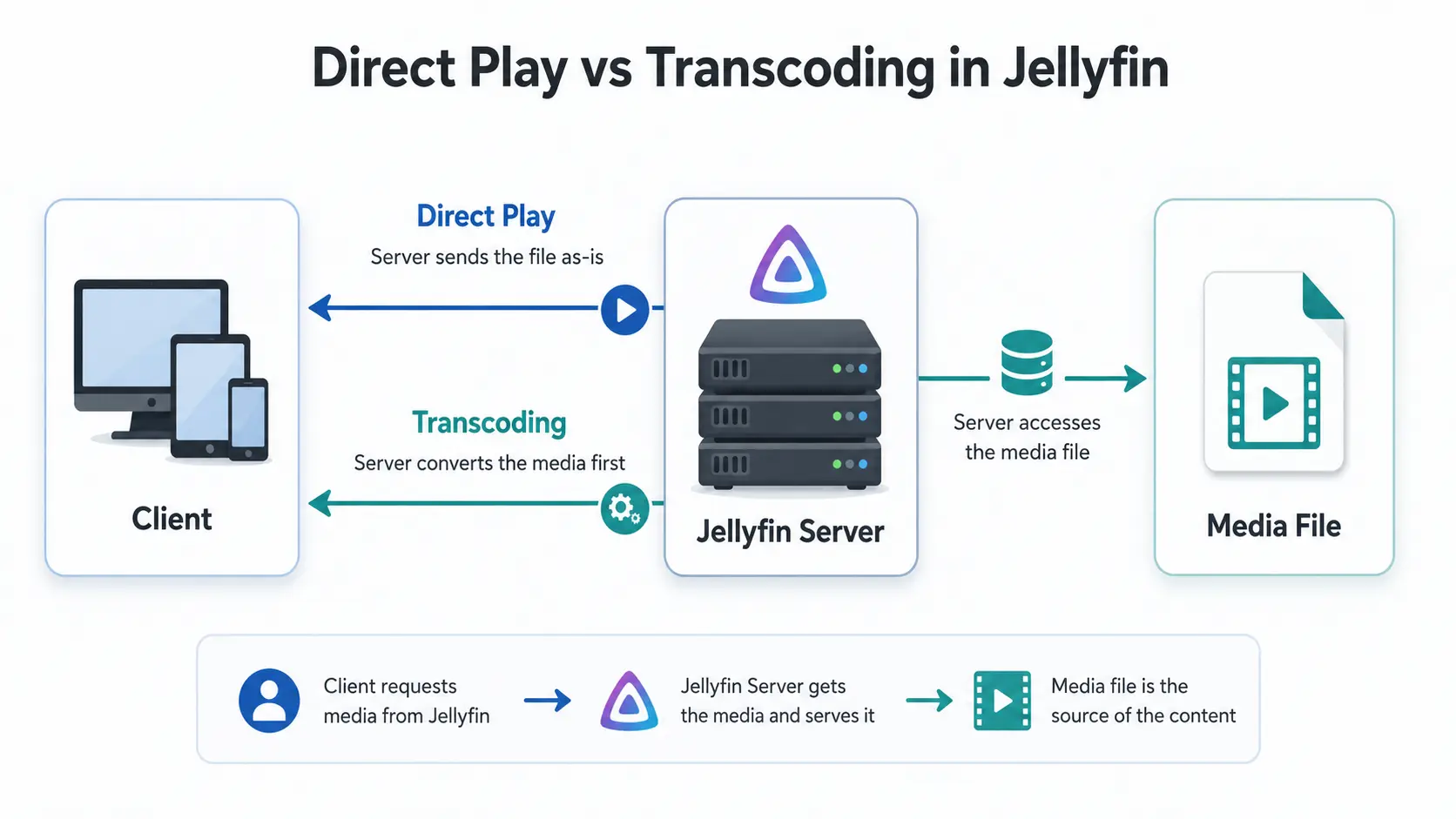
If Jellyfin is transcoding instead of Direct Playing, the client or connection probably cannot use part of the original file as-is. First check the active playback session in Jellyfin to see the specific conversion reason. A container, codec, subtitle format or bitrate limitation can trigger it.
Direct Play sends the original video and audio streams to the client and normally uses the least server CPU. Direct Stream repackages compatible streams without re-encoding the video. Transcoding converts video, audio, subtitles, resolution or bitrate and uses the most server resources.
| Playback mode | What Jellyfin does | Video re-encoded? | CPU usage | Video quality | Bandwidth | Client requirement |
|---|---|---|---|---|---|---|
| Direct Play | Sends the original streams to the client | No | Lowest | Original | Original file bitrate | Client supports the complete file |
| Direct Stream | Repackages compatible streams into another container or delivery format | No | Low | Usually unchanged | Usually close to the original | Client supports the codecs but not the container or delivery method |
| Transcoding | Converts video, audio, subtitles, resolution or bitrate | Sometimes or yes | Highest | May change | Can be reduced for the connection | Client or connection cannot accept the original combination |
For a low-power Jellyfin server, the preferred order is:
Direct Play first
Direct Stream second
Transcoding only when compatibility or bandwidth requires it
Transcoding is not automatically a fault. The key questions are:
- Why did Jellyfin choose this mode?
- Is playback smooth and server load acceptable?
- Can the trigger be removed without reducing compatibility?
Open the Jellyfin dashboard while the file is playing. The active session should show Direct Play, Direct Stream or Transcoding, along with the conversion reason when applicable.
For a step-by-step diagnosis of one file, use How to Check Why Jellyfin Is Transcoding.
Direct Play, Direct Stream and transcoding compared
Direct Play
Direct Play means the client supports the complete playback combination:
- container
- video codec and profile
- audio codec and channel layout
- subtitle format
- resolution and bitrate
- HDR format, where relevant
- delivery method used by the client
Jellyfin reads the original file and sends its streams across the network.
Typical benefits include:
- original video and audio quality
- minimal CPU activity
- lower power use
- less heat and fan noise
- no temporary video conversion
- better capacity for several simultaneous users
Direct Play still requires storage reads, network traffic and normal Jellyfin session processing, but this load is usually modest.
Direct Stream
Direct Stream is often called remuxing.
It normally means the video and audio codecs are compatible, but the client cannot accept the original container or delivery format.
Example:
Source container: MKV
Video: H.264 supported
Audio: AAC supported
Client needs another delivery container
Result: Direct Stream
Jellyfin repackages the compatible streams instead of re-encoding the video. This normally uses little CPU and preserves the original video quality.
Audio can still be converted during a Direct Stream session if the selected track is unsupported. Read Jellyfin Direct Stream vs Direct Play for the detailed container comparison.
Transcoding
Transcoding means Jellyfin converts one or more parts of the media during playback.
Common examples include:
- HEVC to H.264
- 4K to 1080p
- high bitrate to lower bitrate
- TrueHD or DTS to AAC or AC3
- HDR to SDR tone mapping
- subtitle burn-in
- video profile or pixel-format conversion
Video transcoding is normally the expensive operation. Audio-only conversion is usually much lighter.
Which mode uses the most CPU?
The normal resource hierarchy is:
Lowest load
Direct Play
Direct Stream or audio-only conversion
Hardware-accelerated video transcoding
Software video transcoding
Highest load
Actual CPU or GPU use depends on:
- source and target codec
- source and target resolution
- bitrate and frame rate
- subtitles and burn-in filters
- HDR tone mapping
- hardware acceleration support
- number of simultaneous streams
- storage and network activity
Direct Play CPU use
Direct Play normally creates only modest server activity because Jellyfin is not re-encoding the media.
Sustained high CPU during supposed Direct Play is a reason to verify the active session and check whether another process is busy.
Direct Stream CPU use
Direct Stream adds container repackaging and delivery work but is usually lightweight. If playback is smooth and server load remains low, it does not normally need fixing.
Transcoding CPU use
Software video transcoding can use several CPU cores continuously, particularly with:
- 4K HEVC sources
- high frame rates
- subtitle burn-in
- scaling
- HDR tone mapping
- several concurrent streams
Hardware acceleration moves much of this work to a GPU or dedicated media engine. It makes required conversion more practical but does not remove the compatibility or bandwidth reason that triggered it.
Does transcoding reduce quality?
Direct Play quality
Direct Play preserves the original media streams. Jellyfin is not creating a new video representation.
Direct Stream quality
Direct Stream normally preserves the original video stream because it changes the container or delivery method rather than re-encoding the picture.
Audio may still be converted if the client cannot decode the selected track.
Transcoding quality
A video transcode creates a new stream. Quality depends on:
- target bitrate
- target resolution
- source quality
- encoder and hardware
- tone mapping
- client limits
- network conditions
A well-configured transcode can look very good, but it is not identical to the original video stream.
Why Jellyfin transcodes instead of Direct Playing
Unsupported video codec or profile
A client may support H.264 but not HEVC, AV1, a specific HEVC profile, 10-bit video or the source pixel format.
A device advertised as “4K” does not automatically support every 4K codec, profile, HDR format or bitrate.
Unsupported audio track
The video can remain compatible while Jellyfin converts the audio.
Common problem formats include:
- DTS
- DTS-HD
- TrueHD
- some EAC3 combinations
- unsupported multichannel layouts
Try a compatible AAC or AC3 track if one is available.
Subtitle burn-in
Some clients cannot render the selected subtitle track directly. Jellyfin may then decode the video, draw the subtitles into every frame and encode a new video stream.
This can turn an otherwise compatible file into a demanding video transcode.
Disable subtitles and replay the same scene. If the mode changes, use Jellyfin Subtitles Causing Transcoding.
Client quality limit below the source bitrate
A local client set below the source quality can force Jellyfin to create a smaller stream even when the network can carry the original file.
For local testing, use:
OriginalDo not raise remote limits beyond what both the server upload connection and remote client can sustain.
Remote bandwidth limitations
A high-bitrate 4K file may Direct Play locally but require conversion when viewed remotely.
In that situation, the file and client may both be compatible. The limiting factor is the connection or configured remote quality.
Browser support
A file that transcodes in a browser may Direct Play in:
- Jellyfin Media Player
- Android TV or Google TV
- a maintained smart-TV client
- another native Jellyfin application
Do not judge the entire server or library using browser playback alone.
Container incompatibility
If the codecs are compatible but the container is not, Jellyfin may Direct Stream rather than transcode the video. This is normally an acceptable lightweight fallback.
Practical playback examples
| Source and client situation | Likely mode | Reason |
|---|---|---|
| H.264 and AAC in MP4 on a compatible client | Direct Play | Complete combination is supported |
| H.264 and AAC in MKV where the client rejects MKV | Direct Stream | Codecs work; container is repackaged |
| HEVC Main 10 on a client without HEVC support | Video transcoding | Video must be converted |
| Compatible video with unsupported TrueHD audio | Audio conversion or Direct Stream | Video remains unchanged; audio converts |
| Compatible video with PGS subtitle burn-in | Video transcoding | Subtitles require new video frames |
| High-bitrate 4K over a restricted remote connection | Video transcoding | Bitrate or resolution must be reduced |
| Same file on a stronger native client | Direct Play or Direct Stream | Better client support removes the trigger |
The same media file can use different modes on different clients.
How to check the active playback mode
While the file is playing:
- Open Jellyfin in a browser.
- Go to Dashboard.
- Find the active playback session.
- Check whether it says Direct Play, Direct Stream or Transcoding.
- Read the stream and conversion details.
- Record every stated reason before changing settings.
Common reasons include:
Video codec not supported
Audio codec not supported
Subtitle burn-in required
Bitrate exceeds client limit
Resolution not supported
Container not supported
Remote bandwidth limit
HDR or tone-mapping conversion required
Menu wording can vary between Jellyfin versions and clients, but the evidence required is the same.
Playback evidence to record
Use the same file, scene, client, user and quality setting for each comparison.
Client:
Connection: local or remote
Container:
Video codec and profile:
Audio codec:
Subtitle format:
Resolution:
Bitrate:
Selected quality:
Playback mode:
Reported conversion reason:
Hardware acceleration active: yes / no / unknown
Playback smooth: yes / no
Change one variable at a time:
- disable subtitles and replay
- select a different audio track and replay
- set local quality to Original and replay
- use another client with the same file
Stop when the playback mode changes. The last change identifies the likely trigger.
Best formats for Direct Play
There is no format guaranteed to Direct Play on every Jellyfin client.
A broad compatibility target is:
Container: MP4 or MKV
Video:     H.264
Audio:     AAC or AC3
Subtitles: External SRT
For storage-efficient 4K libraries:
Container: MKV
Video:     HEVC Main 10
Audio:     original track plus a compatible fallback where useful
Subtitles: text subtitles where possible
HEVC saves space but requires compatible clients. Read Best Video Format for Jellyfin Direct Play before converting a library.
How to reduce unnecessary transcoding
Use this order:
- Read the dashboard reason. Identify the exact stream or setting that triggered conversion.
- Set local quality to Original. A low quality limit can force unnecessary local conversion.
- Disable subtitles. If playback changes, subtitle handling is the cause.
- Select another audio track. A compatibility track may remove audio conversion.
- Test another client. Better client support may remove the trigger.
- Inspect the media. Use
ffprobeto identify the exact streams. - Check remote limits. Compare source bitrate with upload, download and configured quality.
- Configure hardware acceleration only when conversion remains necessary.
Inspect a file with:
ffprobe -hide_banner "Film Name.mkv"For a broader format and client strategy, use the Jellyfin Direct Play guide hub.
Can Jellyfin be forced to Direct Play?
Not when the client cannot decode the original media combination.
You can encourage Direct Play by:
- using a compatible client
- setting local quality to Original
- selecting compatible audio
- using text subtitles where practical
- avoiding unnecessary remote bitrate restrictions
- keeping media in formats supported by important clients
Disabling transcoding does not add codec support to the client. It usually causes incompatible playback to fail.
The goal is to remove the real conversion trigger, not force a label.
When hardware transcoding is useful
Hardware transcoding is useful when:
- remote bandwidth requires smaller streams
- household clients have different capabilities
- parts of the library cannot Direct Play on important devices
- subtitle burn-in cannot be avoided
- 4K content occasionally requires conversion
- several simultaneous users need different output formats
Use Jellyfin Hardware Transcoding on Ubuntu for configuration guidance.
Verify the active playback process after configuration. A selected hardware-acceleration option does not prove it is working.
When transcoding is acceptable
Transcoding is acceptable when:
- it solves a real compatibility or bandwidth limitation
- playback remains smooth
- server temperature and load remain reasonable
- other users are not affected
- the resulting quality is acceptable
- the reason is understood
Investigate when:
- a normally compatible local file suddenly transcodes
- CPU remains heavily loaded
- playback buffers
- subtitles unexpectedly trigger video conversion
- hardware acceleration is configured but software encoding is still used
Do not replace the server because one unusual file transcodes.
Quick troubleshooting checklist
- Play the problem file on the problem client.
- Open the Jellyfin dashboard.
- Record Direct Play, Direct Stream or Transcoding.
- Record every conversion reason.
- Set local quality to Original.
- Disable subtitles and replay.
- Select another audio track and replay.
- Test the same file on another client.
- Inspect the file with
ffprobe. - Compare source bitrate with remote limits.
- Check hardware acceleration only if video conversion remains necessary.
Related guides
- Jellyfin Direct Play: Formats, Clients and Transcoding
- Jellyfin Troubleshooting
- How to Check Why Jellyfin Is Transcoding
- Jellyfin Direct Stream vs Direct Play
- Jellyfin Subtitles Causing Transcoding
- Best Video Format for Jellyfin Direct Play
- Best Cheap Jellyfin Client for Direct Play
- Jellyfin Hardware Transcoding on Ubuntu
- Jellyfin on Ubuntu
Recap
Direct Play sends the original media and normally uses the least server CPU.
Direct Stream repackages compatible streams and is usually a lightweight, quality-preserving fallback.
Transcoding converts audio, video, resolution, bitrate or subtitles. Video conversion uses the most server resources and can change quality.
Use the Jellyfin dashboard to identify the playback mode and conversion reason. Fix the specific client, subtitle, audio, quality, format or bandwidth issue before changing server hardware.
Downloadable checklist
Save the matching PDF checklist
Use these while working through the guide, or keep a copy for the next time the same problem appears.
Jellyfin Direct Play Checklist
Check codecs, audio, subtitles, clients, and 4K playback before changing hardware.
Download PDFMore downloads are available in the SmallGrid checklists section.
Next guide
What to read next
Continue the setup path with these closely related guides.
Jellyfin Supported Formats: Can It Play MKV, MP4 and HEVC?
Can Jellyfin play MKV, MP4 and HEVC? See supported containers, codecs and subtitles, plus why files Direct Play, Direct Stream or transcode.
Jellyfin Hardware Transcoding on Ubuntu: Intel Quick Sync Setup
Set up Jellyfin hardware transcoding on Ubuntu with Intel Quick Sync, VAAPI, render permissions, and simple checks for low-power mini PCs.
Best Mini PC for Jellyfin: CPU, RAM and Quick Sync Specs
Looking for the best mini PC for a Jellyfin server? Compare Intel N100 and used Core i5 options, Quick Sync, RAM, SSD and low-power requirements.
Jellyfin guide cluster
More Jellyfin fixes and setup guides
These guides link the main Jellyfin setup, permissions, remote access, direct play, and hardware topics together.
Jellyfin 12 Upgrade Guide: 10 Things to Check Before You Update
Prepare Jellyfin 10.10 or 10.11 for version 12: verify backups, plugins, Docker or Ubuntu packages, migrations, permissions, playback and rollback.
How to Reduce Jellyfin Server Power Use on Ubuntu
Reduce Jellyfin server electricity use on Ubuntu by measuring idle and playback power, avoiding unnecessary transcoding, checking background load, storage, CPU behaviour and reboot health.
Give Jellyfin Access to Media Folders on Ubuntu
Fix Jellyfin permission denied errors on Ubuntu. Test the service user, find blocked parent folders, apply safe ACLs, verify inheritance, and check mounted-drive options.
Jellyfin Library Not Showing Files? 8 Checks That Fix It
Fix a Jellyfin library that is empty or missing media. Check mounts, Linux permissions, Docker paths, library folders, naming, scans and logs in the correct order.
Jellyfin Docker Permissions: Fix Media Folder Access and UID/GID Errors
Fix Jellyfin Docker permission denied errors. Check bind mounts, container paths, UID and GID values, read-only media access, active mounts, and file visibility step by step.
Jellyfin Supported Formats: Can It Play MKV, MP4 and HEVC?
Can Jellyfin play MKV, MP4 and HEVC? See supported containers, codecs and subtitles, plus why files Direct Play, Direct Stream or transcode.