

Quick answer
What this guide helps you do
Use a repeatable home-lab maintenance routine for Ubuntu, Docker, Proxmox and Jellyfin, with backups, staged changes, verification and rollback.
Quick answer
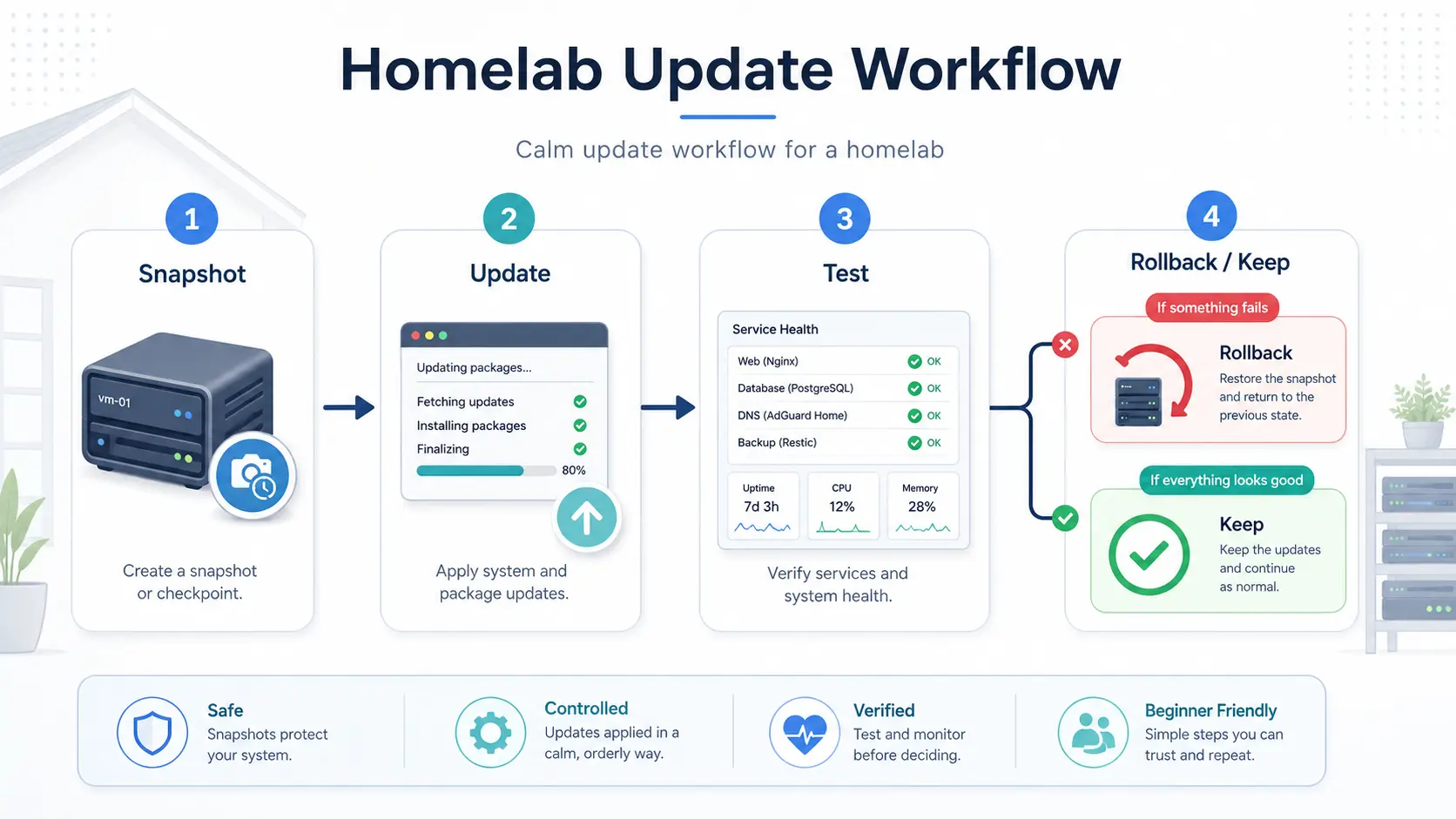
A safe home-lab update routine changes one layer at a time, proves that layer works, and keeps a tested way back.
record the current state
→ check backups and free space
→ read release notes and preview changes
→ update one layer
→ reboot only when required
→ test the services people actually use
→ record the result
Do not update Ubuntu, Docker Engine, every container and Jellyfin in one maintenance window. If something fails, the separation tells you which change caused it.
Know which layer you are updating
| Layer | Examples | Separate change? |
|---|---|---|
| Host operating system | Ubuntu or Debian packages, kernel, systemd | Yes |
| Hypervisor | Proxmox VE packages and kernel | Yes |
| Container runtime | Docker Engine, CLI, containerd, Buildx, Compose | Yes |
| Application image | Jellyfin, Syncthing, Pi-hole | Yes, one stack at a time |
| Application data | Databases, configuration, media metadata | Back up before its application changes |
A container update is not the same as a Docker Engine update. A Proxmox update is not the same as upgrading every VM.
Pick a sensible cadence
- Review security notices promptly.
- Check normal package and application updates weekly.
- Schedule routine maintenance every two to four weeks.
- Give major-version upgrades their own planned window.
- Avoid changes immediately before travel, guests or an important streaming night.
An actively exploited vulnerability can justify faster action. A feature release usually does not.
Step 1: record the current state
For Ubuntu or Debian:
cat /etc/os-release
uname -a
df -hT
systemctl --failed
apt list --upgradable 2>/dev/null
For Docker:
docker version
docker compose version
docker ps --format 'table {{.Names}}\t{{.Image}}\t{{.Status}}'
docker system df
For Proxmox:
pveversion -v
pvesm status
qm list
pct list
Save the output with the maintenance date. It is your baseline when a service behaves differently afterwards.
Step 2: prove the recovery path
Before changing anything important, confirm:
- the latest backup completed successfully
- the backup is stored outside the device being updated
- configuration files and secrets are included
- you know the restore command or interface workflow
- console or local access is available if networking fails
A snapshot can be useful for a short rollback, but it is not an independent backup. Use the 3-2-1 backup guide to design the wider recovery plan.
Step 3: check capacity and health
Updates commonly fail because the root filesystem, boot partition, thin pool or Docker data directory is nearly full.
df -hT
df -ih
sudo du -xhd1 /var 2>/dev/null | sort -h
On Proxmox, also review:
pvesm status
lvs -a -o lv_name,vg_name,lv_size,data_percent,metadata_percent
Investigate unexpected growth before updating. Do not run aggressive prune commands merely to make space; they can remove useful rollback evidence.
Step 4: read the notes and preview the transaction
Read every relevant release note between the installed and target versions. Look for breaking changes, migrations, kernel or storage changes, plugin compatibility, required intermediate versions and known regressions.
For Apt-based systems:
sudo apt update
apt list --upgradable 2>/dev/null
sudo apt --simulate full-upgrade
Do not add -y until you have reviewed what will be installed, upgraded or removed.
Step 5: update one layer
Ubuntu or Debian host
After reviewing the preview:
sudo apt full-upgradeCheck whether a reboot is needed:
test -f /var/run/reboot-required && cat /var/run/reboot-requiredIf unattended upgrades are used, configure them deliberately and still review their logs. Automatic security packages do not replace service-level verification.
Kernel updates are not finished until the running kernel changes
Ubuntu can install a patched kernel while the server continues running the old one. Record both the running kernel and installed image packages:
uname -r
dpkg-query -W 'linux-image*' 2>/dev/null | grep '^linux-image'
test -f /var/run/reboot-required && cat /var/run/reboot-required
When a reboot is required, schedule it after the package transaction finishes and while local or console access is available. After reboot, run uname -r again and test storage mounts, networking, Docker, Jellyfin and any GPU workload. NVIDIA and Raspberry Pi kernel flavours can receive separate security notices, so check the packages actually installed on the host rather than assuming the generic kernel notice covers every machine.
See Ubuntu Kernel Security Updates: What Home Server Users Need to Do for the August 2026 general, NVIDIA and Raspberry Pi notices and a focused verification checklist.
Docker Engine
Update the runtime without pulling new application images in the same window. Follow How to Safely Update Docker Engine on Ubuntu for package inventory, backup and daemon checks.
Docker applications
Update one Compose project at a time. Record the exact image reference, back up persistent data, validate the Compose model, then verify the application before moving on. Use How to Update Docker Containers Safely.
Never use a loop that blindly pulls and recreates every stack. It combines unrelated changes and makes rollback harder.
Proxmox VE
Back up important guests away from the host, record pveversion -v, check storage and cluster health, and review the roadmap. New SmallGrid work uses Proxmox VE 9.2 as its baseline.
An 8-to-9 migration is a major upgrade, not an ordinary patch cycle. Use Proxmox’s dedicated upgrade guide and checker.
Jellyfin
Keep a stable 10.11 installation on the latest 10.11.x patch after taking an offline backup. Use How to Safely Update Jellyfin 10.11.x. Jellyfin 12 is a separate major migration.
Step 6: reboot deliberately
Reboot only when the changed layer requires it, and only after confirming backups and update tasks have finished, console access works, mounts are documented, and important guests will not start against a missing disk.
After reboot:
uname -a
systemctl --failed
findmnt
journalctl -b -p warning --no-pager
On Proxmox, add pvesm status, qm list and pct list.
Step 7: run service-level smoke tests
Test outcomes, not just processes.
| Service | Minimum useful test |
|---|---|
| Jellyfin | Sign in and play a known file for at least 30 seconds |
| DNS filtering | Resolve several normal domains from a client |
| Remote access | Connect from outside the home LAN through the intended route |
| File sync | Create a test file and confirm it reaches another device |
| Backups | Verify that a recoverable archive exists |
| Proxmox | Start a representative guest and confirm network and storage access |
Review logs for repeated errors and allow resource usage to settle before declaring success.
Step 8: keep a maintenance record
Date and operator:
Reason for update:
Starting versions:
Target versions:
Backup location and verification:
Commands or interface actions:
Reboot required:
Smoke-test results:
Problems and rollback actions:
Final versions:
Rollback rules
- Stop making new changes once a failure appears.
- Preserve logs and the failed state long enough to diagnose it.
- Restore the application version and matching pre-update data when a migration changed persistent data.
- Do not assume an old package or image tag will remain available.
- Do not prune old images immediately after a container update.
- If storage or the kernel is involved, prefer local console recovery over remote experimentation.
Write the actual rollback path before the update, not while the household is waiting for the server.
Final checklist
- The maintenance scope covers one layer.
- Current versions and health were recorded.
- Backups exist outside the affected device and the restore path is known.
- Free space and storage health were checked.
- Release notes and the proposed transaction were reviewed.
- A controlled reboot was completed if required.
- Real service tests passed.
- The result and final versions were recorded.
- Rollback evidence has been retained.
Small, observable updates are easier to trust than one giant annual change. The goal is predictable maintenance with a credible recovery path.